Enter your E-Mail to subscribe and You will get a confirmation mail - read it.

Enter your email address:

Delivered by FeedBurner

Showing posts with label windows tips. Show all posts

Wednesday, April 9, 2008

Irritated by XP themes? Then switch to Mac

Dear visitor,
In my last posts I explained how to change your windows default XP theme to Vista by VistaMizer. Still if you are irritated to use such XP or Vista themes try Macintosh theme in your machine. I just tried and it is working up to my expectations.


A theme called “Flyakite OSX” developed for you. This theme provides exactly the same UI (User Interface) what Mac OS provides. It provides the apple boot screen at startup and provides its logoff screen too. Very smooth interface provided and it makes you think like; working on Mac machine. FlyakiteOSX is associated or affiliated with Apple Computers to provide its theme. The above figure captured in my machine.
To view the exact theme look, just open the above image in new window.

What is FlyakiteOSX?
FlyakiteOSX is a transformation pack. It will transform the look of an ordinary Windows XP+ system to resemble the look of Mac OS X. The installer simply automates the process of replacing critical system files, setting registry tweaks, and installing extras such as cursors, sounds, visual styles, etc. FlyakiteOSX DOES NOT contain any spyware or ad-ware of any kind. All files needed for FlyakiteOSX are stored in the Windows directory in a folder named 'FlyakiteOSX' that is hidden by default. All registry values for FlyakiteOSX are written to HKEY_LOCAL_MACHINE\Software\FlyakiteOSX.

Feature provided by FlyakiteOSX transformation pack:

  • Object Dock – You can move around the desktop borders easily.

  • Search Spy -- Search bar to search for a file or folder like Google desktop search.

  • Y’Z Shadow – To place colorful shadows for windows and dialog boxes.

  • WinRoll -- A nice little utility that allows you to roll up a window so that just the title bar shows.

  • iColorFolder - allows you to change the color of any normal folder.

So dear visitor just download FlyaKiteOSX transformation pack and enjoy the User Interface of Mac without installing Mac OS.


Sunday, March 2, 2008

Restore accidentally deleted from your computer by Recuva

Accidentally deleted data from your hard disk? No Problem dear...
Here is a solution to retrieve them by Recuva. By Recuva you can retrieve data even if you delete them by suing SHIFT+DELETE key. We generally think that by using SHIFT+DEL data may lost permanently. But it's wrong. But Recuva you can!

Recuva (pronounced "recover") is a freeware Windows utility to restore files that have been accidentally deleted from your computer. This includes files emptied from the Recycle bin as well as images and other files that have been deleted by user error from digital camera memory cards or MP3 players. It will even bring back files that have been deleted by bugs, crashes and viruses!

Recuva supports:
► FAT12, FAT16, FAT32, NTFS, NTFS5 , NTFS + EFS file systems
► Restores files from removable media (SmartMedia, Secure Digital, MemoryStick, Digital cameras, Floppy disks, Jaz Disks, Sony Memory Sticks, Compact Flash cards, Smart Media Cards, Secure Digital Cards, etc.)
► Can be run from a USB thumb drive
► It's fast, tiny and takes seconds to run!


► Select drive
► Click on Scan
► Select files which you want to recover
► Click on Recover
► Save it.

Make sure that it is better to recover files as quick as possible when you accidentally deleted. Because newly updated data may over write on deleted data space. This results incorrect backup of your lost files.

Download Recuva from filehippo


Monday, February 25, 2008

Delete files securely with File Shredder

With File Shredder you can remove files from your hard drive without fear they could be recovered. There are quite a few software tools today for retrieval of deleted files under Windows OS. Those tools, often referred to as "file recovery" software, are taking advantage of shortcoming of Windows "delete" command that we all use regularly to delete files.

Actually, the "delete" operation in Windows only removes bits of information from files so they appear deleted in OS. It is easy to retrieve those files using aforementioned specialized file recovery software.

In order to remove, or shred files permanently from your system you have to use a program that is capable of rewriting the files with random series of binary data multiple times. This process is often called shredding. That way, the actual content of the file has been overwritten and the possibilities to recover such a shredded file are mostly theoretical.


File Shredder has been developed as fast, safe and reliable tool to shred company files. I believe this utility should be available to anyone for free and that permanent and safe removal of confidential documents is a matter of basic right to privacy.

In File Shredder you can choose between 5 different shredding algorithms, each one gradually stronger than the previous one. It also has integrated Disk Wiper which uses shredding algorithm to wipe unused disk space. More on options of File Shredder check Online Help page.

Reference from: http://fileshredder.org/
Download linke: click here to DOWNLOAD
For tutorial help: click here


Saturday, February 16, 2008

What is that file?

In our machine while installing softwares we can see lot unknown files which are unrecognized by Operating system.
Sometimes some file formats may be unknown to us.

This whatisthatfile site is extremely helpful if you are suspicious about a file running in your task manager and want to know that either it is a safe file or it is virus or any type of spyware. You can learn more about functionality of a file format.


Saturday, February 2, 2008

Move your "My documents" Folder in safe place

"My documents" in windows is the very important folder. I think everybody know it.
It is default folder in windows. Most of the people don't know that we can change the default path of "My documents" folders to other drives. As we all know, My Documents is the most popular folder where computer users save almost all his or her data including but not limited to videos, musics, pictures and important documents.

Some times when we are saving any document it will directly shows the path to save in my documents folder. So using "My documents" folder is very popular.

Now a days virus attacks make our system to become crashes down. Some times windows my crash up due to boot failures. So in that cases we can't backup our data. So it is better to save "my doucments" folder in other drive rather than windows installed drive.


To do this fallow these steps

In general "My documents" folder is placed in C: drive i.e windows default installation drive.

"Just right click the My Documents shortcut on desktop and click on the "Move" button and choose the location where you want to transfer your My Documents folder and then click OK."

Now your data will be secure when your system crashes.


With VistaMizer you can keep your Windows XP operating system while enjoying a brand new, true Vista look. In addition to changing the whole desktop appearance, more than 300 files are replaced with new icons, pictures and videos. This means that VistaMizer does not provide its own files, but modifies those of your system which you select during the installation process.
In any case, VistaMizer is optimized to get over compatibility issues and therefore ensures that the system doesn't become unstable due to the changes. And if you're not satisfied by the results or simply want to go back to XP, you have the possibility to return to your old system by running VistaMizer's uninstallation feature. Take a look at what the program features:

  • Modifies your own system files
  • Free choice of the files you want to change
  • Multilingual support
  • Compatibility check during installation
  • Backup of the original system files

  • Monday, December 24, 2007

    Batch files Magic :Shutdown, Restart, And Stand By

    In MS-DOS,OS/2, and windows, a batch file is a text file containing a series of commands intended to be executed by the command interpreter. When a batch file is run, the shell program (usually COMMAND.COM or cmd.exe) reads the file and executes its commands, normally line-by-line. Batch files are useful for running a sequence of executable automatically and are often used by system administrator to automate tedious processes.

    Here is a technique to shutdown, restart , and standby of your PC by using batch file.

    Just copy and paste below text in a notepad and save it "shutdown.bat" , "restart.bat",and "standby.bat" respectively.

    Shout down: shutdown.exe -s -t 0
    Restart:
    shutdown.exe -r -t 0
    Standby:
    rundll32.exe PowrProf.dll, SetSuspendState Standby


    You can see those files like this

    To put those file in quick launch button menu you have to fallow these steps

    Just drop and drag those file into quick launch menu.
    Right click on each short cut and click on change icon.
    Then you can change those file appearances according to your wish.

    By these way you can easily access Shutdown,Restart,and standby options.


    Wednesday, December 19, 2007

    Defraggler - Alternative to Windows defragmenter

    From Piriform, the company that brought you CCleaner and Recuva... they now bring you a file defragmentation tool... Defraggler! This is a very small utility with the size of 400KB.

    It differs from other defrag tools on the market, by enabling you to quickly and simply defrag the files you want to, without having to process the whole drive. Simply run it, select the file and defragment in seconds. No more struggling with the Windows fragmentation tool!

    • Defrag Individual files
    • Compact and portable
    • vista support
    • Locate files on the drive
    • freeware
    And remember like all Piriform products, Defraggler is completely free for both corporate and individual use.

    Download from filehippo


    Wednesday, December 12, 2007

    Disable Microsoft error reporting

    You can enable, disable, or modify the way that error reporting works on a Windows XP-based computer. When an error occurs, a dialog box is displayed that prompts you to report the problem to Microsoft. If you want to report the problem, technical information about the problem is sent to Microsoft over the Internet. You must be connected to the Internet to use the feature. If a similar problem has been reported by other users and information about the problem is available, you receive a link to a Web page that contains information about the problem.
    To disable this feature from your system
    1. Right click on my computer icon on your desktop.
    2. Click on Properties
    3. click on advanced menu
    4. At bottom of the window you can see Error Reporting
    5. Click on Disable error reporting


    Friday, November 30, 2007

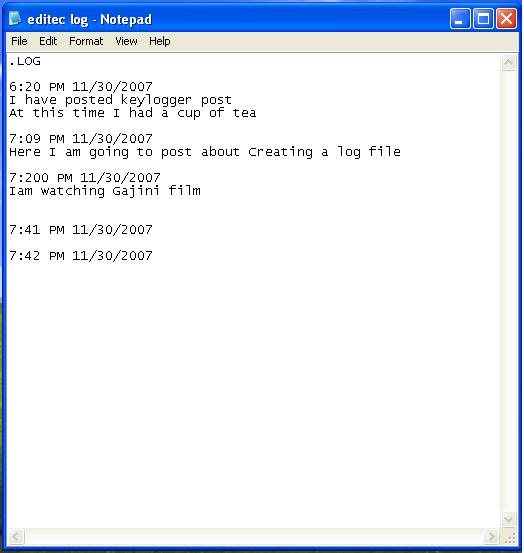
    Creating Log Files of your own

    You can create Your own log files by using note pad.

    About Note Pad:
    Microsoft Notepad is a word processing tool included with Windows and is installed by default under the Accessories program group. You can use it to create a log-type file that adds the current date and time each time the Notepad file is opened. This article describes how to create a log file with Notepad.

    To create a log file in Notepad:
    1.Click Start, point to Programs, point to Accessories, and then click Notepad.

    2. Type .LOG on the first line, and then press ENTER to move to the next line.

    3. On the File menu, click Save As, type a descriptive name for your file in the File name box, and then click OK. When you next open the file, note that the date and time have been appended to the end of the log, immediately preceding the place where new text can be added. You can use this functionality to automatically add the current date and time to each log entry.

    Source of above Post: Microsoft.Support


    Thursday, November 29, 2007

    Find unknown file extensions

    One day I have downloaded "Partition Logic" Software from its site.

    It was looking like a "partlogic-0.67" file.
    I thought that it was a ".rar" (Winrar zip file).

    But finally I found that it is ".iso" file.

    Before finding it I was cracked.
    Whenever extracted that file it is showing errors.
    Finally I find the mystery behind of it.

    It is ".iso" file.

    I did this:


    Open windows explorer.
    Open tools menu.
    Click on
    folder options
    Then you can see above window.
    There you find "
    Hide extensions for known file types"
    Just remove the right option.
    Then click on "OK"

    Now all files will appear with their extensions.

    By this way you can find unknown file extensions.


    Have a Fun with Folder

    Can you disappear any folder (But you should not use hide option)?
    Here is a funny technique.

    Suppose I have a folder "My works".
    It contains important files. Now I want to hide it.


    "Right click" up on the folder to be hide.
    Click on "properties".
    Click on "customize" option.
    There at bottom you can see "Change Icon.." option. Click up on it.

    Then you can see this


    In the above while you are scrolling you can see three empty icons.
    There will not appear any image.
    Click up on it and click "OK" button.

    Then the original folder icon will become empty icon. Like this


    Now the Problem is to how to hide the name of "My Works". To do this
    Right click on "
    My Works"
    Click on "Rename" option.

    And then type "ALT + 0160" Simultaneously.

    Then the folder will hide.


    Here above folder is there. It will not hide entirely.
    Just it disappears.
    hat empty icon folder works like a normal folder.

    How to recover the original foder?
    Before performing the above technique you need to remeber the folder name to be hide. Ok.

    Right on the empty space.
    Click on Properties.
    Click on Customize option.
    Click on Change icon button.
    Select the original windows folder icon.
    Then click ok.
    Then rename it.

    You will get the orignial folder with its contents.


    Friday, November 23, 2007

    Adding shortcuts to Task Bar


    Generally we may access some of the files or folders frequently.

    Some times it may iritate to go through my computer and selecting a particular file.

    Here windows task bar shortcut techniques is the better solution for it.

    Just you right click on the task bar -> Toolbars -> New Folder

    And then select the folder you want to add from the hard disk where it was placed earlier.

    Just copy and paste into that folder which files you may require to access frequently.

    (Here "Freq Access" is my own folder not by default with windows)


    Monday, October 29, 2007

    Secret Music In Windows XP

    Microsoft Windows XP is playing a cool music during installation. It is a pleasant little tune that you’ve probably never heard, unless you were present when Windows was being installed on your PC. After that it’s never played again, unless you know where to look for it.

    To hear what you’ve been missing, just follow these:

    Make you way to

    C:\WINDOWS\system32\oobe\images

    and look for a file called "Title.wma"

    This Music will not play at the time of fresh installation of Windows XP.
    When you choose "Repair" option while your installation You can here the sound.

    Difference is
    At the time of fresh installation audio drivers are not yet installed. So you can not here the music.
    While you are repairing you can here. Because already audio driver is installed.


    Saturday, October 27, 2007

    can you create Folder?

    It is looking Funny!

    So try to create these folders (or files)

    CON, .CON , CON. ,COM1 ,COM2 , COM3 ,COM4 ,LPT1 ,LPT2 ,LPT3 ,PRN ,NUL ,AUX

    Once Check it Out.

    It is impossible.

    Interesting !

    You aren't allowed to create folders with names that are the same as the ones that have been used for various devices on a PC since the DOS era.

    "CON" refers to "console" in DOS.
    "PRN" refers to "printer,"
    "LPT1," "LPT2," etc., and "COM1," "COM2," etc. refers to the communication ports.

    The bug has been tried and tested in both Windows XP Home and Professional. If you try to make a folder named "CON" (case insensitive), Windows XP renames it back to what it was. So creating a new folder with the name "CON" just renames it to "New Folder".

    The bug seems like a variable that got treated as a string or vice-versa. Trying to create the folder from a cmd prompt failed with an error "The directory name is invalid.".

    This also works when you try to create a file called "CON", or "CON.". ".CON" shows up the way it should.

    Methods To Create Above Folders:

    Method 1:

    STEP1: goto command prompt
    STEP2: type in prompt e:\> ((mkdir \\.\e:\con))
    STEP3: verify by typing ((dir \\.\e:\con))
    STEP4: delete the file or folder ((rmdir \\.\e:\con))
    Note::Not necessary for to go only E:,u canm create in any Drive.

    (This method is bulky and confusion. So You can Use)

    Method 2:

    Create Folder
    While name Type CON and then stroke the key ALT+0160 on numeric key pad.
    (CON -> ALT+0160)
    Then you can create CON folder and other described folders.

    It means that when you type a folder name with simple
    ALT+0160 you can create empty folder.
    There is no name for a folder.
    Here we are using "CON " (CON with space).
    This is the tricky logic here.


    Monday, October 22, 2007

    Difference Between Hybernate and Standby

    Standby:

    Your machine recovers quickly as your data is stored in RAM. The slower part is waking up the peripherals. Although your machine is in "standby" the power has been cut to items such as your hard drive and monitor. You're running your machine in a very low power mode, but it is still on. This mode can be useful if you're on a notebook and need to conserve your battery while you step away.

    Hibernate:

    The big difference is that your PC has shut down and is not pulling power. Another difference is that your data is saved to your hard disk and not RAM. This makes it a safer, but slower option for shut down and resume.

    Note:
    Not all PCs have the capability and are configured to Hibernate. If yours is, to see the Hibernate option on your XP shutdown screen, hold down the Shift key when you shut down.

    Some comments up on hibernate and standby:

    comment 1:

    I've always loved hibernate. It's great for when you are running out of power and don't want to lose what you're working on.

    Still, I used hibernate for a while on my home machine, but my wife hated it because it took to long so I switched it to standby. It's much faster, but I constantly get these annoying errors about data lost on $DMFT or something like that.

    comment 2:

    I prefer Hibernate for my desktop, as it allows me to pick up right from where I left off. Slow as a it may be, it is not nearly as slow as a clean boot.

    comment 3:

    It uses about as much hard disk space as you have RAM. Thus, if you have 1 GB of RAM, you can expect hibernating to take about 1 GB of hard disk space. This will be cleared up when you bring the system back up. Whether this is an "enormous chunk of your hard drive" depends on your particular system and your definition of "enormous".

    My choice is depending up on your hardware configuration and your flexibility you use hibernate or standby


    Monday, September 3, 2007

    How to rename 100 files at a time

    I have a problem.
    I have 100 images of my sister Marriage.
    All images have different file names. I want to rename them at a time? How can i do? Here is technique.

    open folder which contain images or any other files.

    select images(files) which you want to rename sequentially.

    now whatever files you are selected are appear in blue coloured selected files.

    just right click on the first image(file) and select rename

    here type "marriage"
    then press enter

    Now you can see that all the files are name as
    marriage
    marriage (1)
    marriage (2)
    .
    .
    .
    .
    marriage (99)

    It is very very easy way to rename all the file at time.